
How to Set Google Business Profile Holiday Hours
Set holiday hours on your Google Business Profile without changing your weekly schedule. Follow the steps, a shop example, and checks for common mistakes.
To set holiday hours on your Google Business Profile, open Edit profile → Hours → Special hours, choose the date, enter the opening times or mark the day closed, then save. Special hours apply to the dates you select without changing your regular weekly schedule. Confirm official holidays even when you're keeping your usual hours, as Google recommends.
How to set holiday hours on Google Business Profile
Special hours are date-specific opening times for holidays, special events, or other short-term changes. Before you start, have the dates and actual opening times ready, and use the Google account that manages your business profile.
- Open your Business Profile on Google.
- Select Edit profile, then Hours.
- In the Business hours section, select the edit control next to Special hours.
- Choose a date. Select Review for a holiday Google suggests, or Add a date to enter another date. Select an existing date if you're correcting an entry.
- Set that day's hours. If you're open, uncheck Closed and enter the opening and closing times. If you're closed all day, keep Closed checked.
- If you close and reopen on the same date, select More → Add hours + and add the second opening period.
- Select Save. Repeat for the other dates that need an entry.
These steps follow Google's Special hours instructions. After saving, reopen Special hours and check each date and time against your planned schedule.
A florist's three-date holiday schedule
Say your flower shop normally opens Monday through Saturday, 9 a.m. to 6 p.m. For the Christmas period in 2026, you plan to close early on December 24, close all day on December 25, and open as usual on December 26.
| Date | What customers need to know | What to enter in Special hours |
|---|---|---|
| December 24, 2026 | Early closing | Open, 9 a.m.–2 p.m. |
| December 25, 2026 | Closed all day | Closed |
| December 26, 2026 | Normal opening times confirmed | Open, 9 a.m.–6 p.m. |
Leave your main weekly hours alone. Editing the regular Thursday closing time to 2 p.m. would change your weekly schedule instead of recording a one-day exception.
If the shop opens from 9 a.m. to noon and then from 2 p.m. to 6 p.m. on a holiday, enter both periods. A single 9 a.m.–6 p.m. entry would tell customers you're open during the break.
Which hours setting should you use?
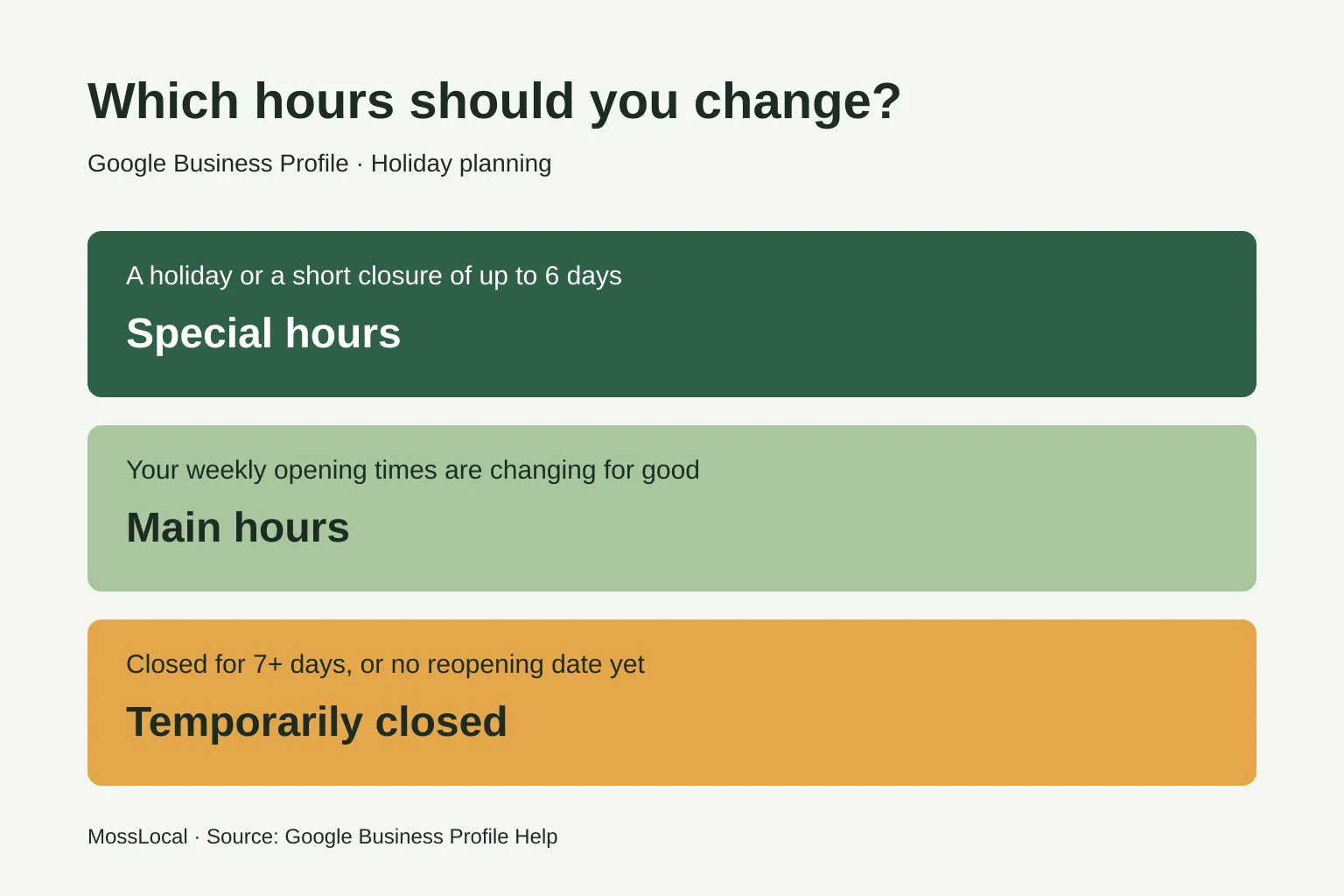
Use Special hours for a holiday or a brief exception. Use main hours when the recurring weekly schedule itself changes. Google's business-hours guide distinguishes main hours from Special hours and More hours.
| Your situation | Setting to use |
|---|---|
| One holiday has shorter or longer opening times | Special hours for that date |
| You're closed for up to 6 consecutive days | Special hours for each affected date |
| Your regular weekly timetable changes | Main business hours |
| Delivery, takeout, or another service has its own timetable | More hours |
| You're closed for 7 or more consecutive days, or don't know when you'll reopen | Temporarily closed |
The closure thresholds come from Google's Special hours guidance. Count consecutive closed days before choosing the setting, including any normal closed days within the closure.
Why can't I see Special hours on my profile?
Google says Special hours only appear to customers when your business is set to Open with main hours. If the option or its public display isn't behaving as expected, check the main hours setting before entering the same dates again.
Make sure you're managing the right business, too. A saved change on a second location's profile won't fix the hours on the shop customers are viewing.
Check what customers will see before the holiday
After saving, open the public listing in Google Search or Maps and inspect the hours section. Compare any displayed holiday dates with the schedule you entered; don't assume today's open-or-closed label confirms a future holiday.
Use this final check:
- Each affected date is present in Special hours, including any nearby day with a different schedule.
- All-day closures are marked Closed, rather than entered as a short opening period.
- Morning and afternoon times are correct, especially if you use a 12-hour clock.
- Your website, booking information, and shop-door notice agree with the Google listing.
Keep a dated record in the free profile-care work log. Note the holiday dates you checked, any correction needed and when you verified it on the public profile. Use the separate approval, submitted and live fields to track each step; saving a change isn't proof customers can see it yet.
If a public date is wrong, return to the saved entry and check the date, time, and selected business first. A holiday announcement or photo can help explain your plans, but enter the structured hours as well so customers can find them in the hours section.
Want another pair of eyes on your profile?
MossLocal offers a free personal video audit of your public Google Business Profile, with practical recommendations and the option to discuss ongoing support. The audit doesn't require account access; any later profile management needs your express authorization.